Getting Started with Kova for Students
Kova is where your class's activities, assignments, readings and study help live. Here is what you need to know in five minutes.
Teaching a class? Getting started for instructors
1. Join your class
Sign up with your school email and choose Student. Enter the code we email you to confirm.
Already added by your instructor? You join your class automatically when you sign up with that email.
Have a join code? Choose + Join a class and enter it.
Coming from Canvas? Open Kova from your Canvas course and you go straight to your class.
Taking more than one class? Switch between them with the class switcher at the top of the sidebar.
2. Do an activity
Find your work on your class's course page, with due dates shown or within the Conjure Assign page.
Live activities will either be within the Lens page if your instructor is also presenting slides, or in the Conjure Live page if your instructor is not hosting a Lens.
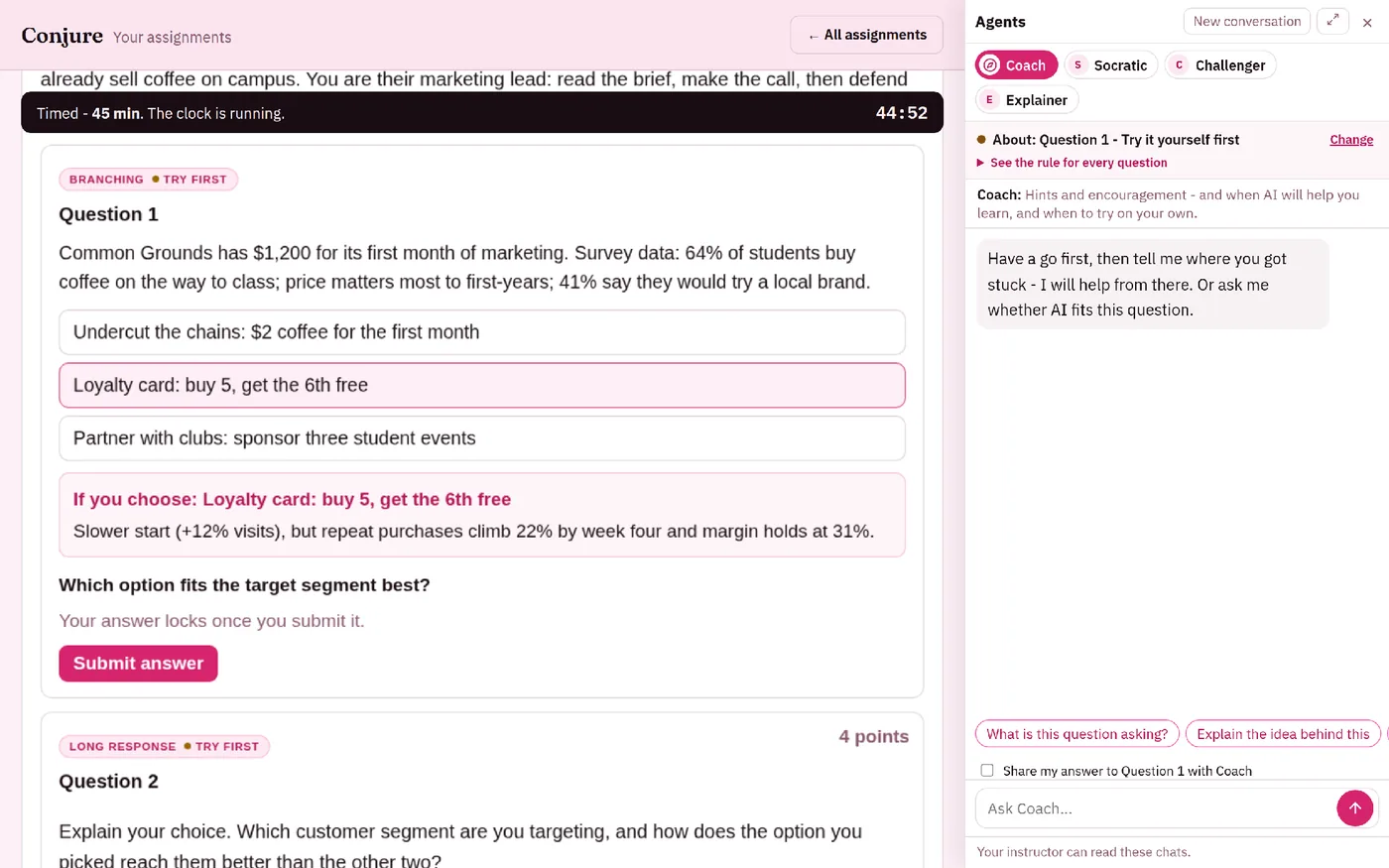
Check the AI rule on each question. The label says what help you may use:
No AI - your own work only; the agents step away.
Try first - make an attempt, then the agents can help you think it through.
With AI - work through it with an agent; your answer stays in your own words.
Timed activities show the time before you start, and the clock begins only when you press Begin. You get a warning at 5 minutes and 1 minute left. If you have extra time as an accommodation, it is already included.
Your work is auto-saved, so feel free to leave and pick it back up later.
Submitting: Kova asks you to confirm before an answer or the whole activity is locked in.
3. Use the AI agents
Inside an activity, open the Agents panel. The Coach gives hints and encouragement; Socratic, Challenger and Explainer help in other ways. The panel shows which question you are asking about and its rule.
Agents & Workspace in the sidebar is for studying any time. Pick an agent under Talk to - they answer from your class materials and show where an answer came from.
Your conversations are private from classmates unless you choose to share them. Your instructor can read your conversations with the class's agents.
Make your own agent if your instructor allows it: choose + Create agent, start from a card such as Study buddy or Quiz me, and save it as a draft until it is ready.
Agents help you learn - they will not do graded work for you where the rule says No AI or Try first.
4. Grades, settings and help
Grades and feedback appear on the activity when your instructor releases them - right after you submit, or later if they review first.
Make Kova work for you in Settings: switch between light and dark themes and change the text size. Every activity works with a keyboard and a screen reader.
Need extra time or another accommodation? Ask your instructor - they can set it up so only you and your teaching team see it.
Stuck? Ask your instructor, or email support@kovaedu.com.